# 手势识别
# GestureDetector
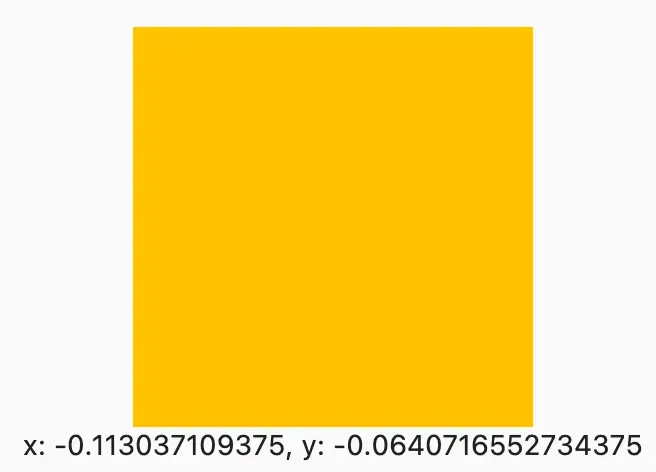
GestureDetector是一个用于手势识别的功能性组件,我们通过它可以来识别各种手势。
定义
GestureDetector({
    Key? key,
    this.child,
    // 单击手势
    this.onTapDown, // 手指按下时触发
    this.onTapUp, // 手指抬起时触发
    this.onTap, // 点击事件
    this.onTapCancel, // 点击取消事件
    // 双指手势 (鼠标右键)
    this.onSecondaryTap, // 鼠标右键单击
    this.onSecondaryTapDown, // 鼠标右键按下
    this.onSecondaryTapUp, // 鼠标右键抬起
    this.onSecondaryTapCancel, // 鼠标右键取消
    // 三指手势 (不常用)
    this.onTertiaryTapDown, // 三指按下
    this.onTertiaryTapUp, // 三指抬起
    this.onTertiaryTapCancel, // 三指取消
    // 双击手势
    this.onDoubleTapDown, // 双击按下
    this.onDoubleTap, // 双击事件
    this.onDoubleTapCancel, // 双击取消
    // 长按手势
    this.onLongPressDown, // 长按按下
    this.onLongPressCancel, // 长按取消
    this.onLongPress, // 长按事件
    this.onLongPressStart, // 长按开始
    this.onLongPressMoveUpdate, // 长按移动
    this.onLongPressUp, // 长按抬起
    this.onLongPressEnd, // 长按结束
    // 两点 三点 长按 (鼠标右键)
    this.onSecondaryLongPressDown, // 鼠标右键长按按下
    this.onSecondaryLongPressCancel, // 鼠标右键长按取消
    this.onSecondaryLongPress, // 鼠标右键长按事件
    this.onSecondaryLongPressStart, // 鼠标右键长按开始
    this.onSecondaryLongPressMoveUpdate, // 鼠标右键长按移动
    this.onSecondaryLongPressUp, // 鼠标右键长按抬起
    this.onSecondaryLongPressEnd, // 鼠标右键长按结束
    this.onTertiaryLongPressDown,
    this.onTertiaryLongPressCancel,
    this.onTertiaryLongPress,
    this.onTertiaryLongPressStart,
    this.onTertiaryLongPressMoveUpdate,
    this.onTertiaryLongPressUp,
    this.onTertiaryLongPressEnd,
    // 垂直 水平 Drag
    this.onVerticalDragDown, // 垂直拖动按下
    this.onVerticalDragStart, // 垂直拖动开始
    this.onVerticalDragUpdate, // 垂直拖动更新
    this.onVerticalDragEnd, // 垂直拖动结束
    this.onVerticalDragCancel, // 垂直拖动取消
    this.onHorizontalDragDown, // 水平拖动按下
    this.onHorizontalDragStart, // 水平拖动开始
    this.onHorizontalDragUpdate, // 水平拖动更新
    this.onHorizontalDragEnd, // 水平拖动结束
    this.onHorizontalDragCancel, // 水平拖动取消
    this.onForcePressStart,
    this.onForcePressPeak,
    this.onForcePressUpdate,
    this.onForcePressEnd,
    // 点击滑动
    this.onPanDown, // 拖动按下
    this.onPanStart, // 拖动开始
    this.onPanUpdate, // 拖动更新
    this.onPanEnd, // 拖动结束
    this.onPanCancel, // 拖动取消
    this.onScaleStart, // 缩放开始
    this.onScaleUpdate, // 缩放更新
    this.onScaleEnd, // 缩放结束
    this.behavior,
    this.excludeFromSemantics = false,
    this.dragStartBehavior = DragStartBehavior.start,
1
2
3
4
5
6
7
8
9
10
11
12
13
14
15
16
17
18
19
20
21
22
23
24
25
26
27
28
29
30
31
32
33
34
35
36
37
38
39
40
41
42
43
44
45
46
47
48
49
50
51
52
53
54
55
56
57
58
59
60
61
62
63
64
65
66
67
68
69
70
71
2
3
4
5
6
7
8
9
10
11
12
13
14
15
16
17
18
19
20
21
22
23
24
25
26
27
28
29
30
31
32
33
34
35
36
37
38
39
40
41
42
43
44
45
46
47
48
49
50
51
52
53
54
55
56
57
58
59
60
61
62
63
64
65
66
67
68
69
70
71
包含了大量的交互操作
代码
import 'package:flutter/material.dart';
class GesturePage extends StatefulWidget {
const GesturePage({Key? key}) : super(key: key);
State<GesturePage> createState() => _GesturePageState();
}
class _GesturePageState extends State<GesturePage> {
double? dx, dy;
Widget _buildView() {
return GestureDetector(
child: Container(
color: Colors.amber,
width: 200,
height: 200,
),
// 点击
onTap: () {
print('点击 onTap');
},
// 长按
onLongPress: () {
print('长按 onLongPress');
},
// 双击
onDoubleTap: () {
print('双击 onLongPress');
},
// 按下
onPanDown: (DragDownDetails e) {
print("按下 ${e.globalPosition}");
},
// 按下滑动
onPanUpdate: (DragUpdateDetails e) {
setState(() {
dx = e.delta.dx;
dy = e.delta.dy;
});
},
// 松开
onPanEnd: (DragEndDetails e) {
print(e.velocity);
},
);
}
Widget build(BuildContext context) {
return Scaffold(
body: SizedBox.expand(
child: Column(
mainAxisAlignment: MainAxisAlignment.center,
children: [
_buildView(),
// 显示
Text('x: $dx, y: $dy'),
],
),
),
);
}
}
1
2
3
4
5
6
7
8
9
10
11
12
13
14
15
16
17
18
19
20
21
22
23
24
25
26
27
28
29
30
31
32
33
34
35
36
37
38
39
40
41
42
43
44
45
46
47
48
49
50
51
52
53
54
55
56
57
58
59
60
61
62
63
64
65
66
67
2
3
4
5
6
7
8
9
10
11
12
13
14
15
16
17
18
19
20
21
22
23
24
25
26
27
28
29
30
31
32
33
34
35
36
37
38
39
40
41
42
43
44
45
46
47
48
49
50
51
52
53
54
55
56
57
58
59
60
61
62
63
64
65
66
67
输出
flutter: 用户手指按下:Offset(127.7, 218.0)
flutter: Velocity(0.0, 0.0)
Reloaded 1 of 585 libraries in 171ms.
Reloaded 2 of 585 libraries in 205ms.
flutter: 按下 Offset(128.0, 188.2)
flutter: 长按 onLongPress
flutter: 按下 Offset(145.0, 214.2)
flutter: Velocity(-44.4, -45.0)
1
2
3
4
5
6
7
8
2
3
4
5
6
7
8
# InkWell
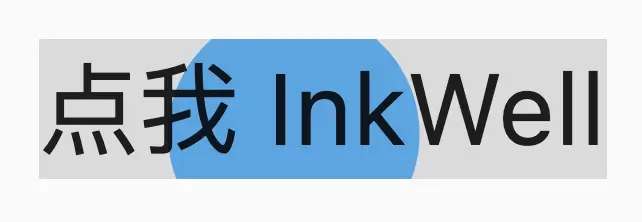
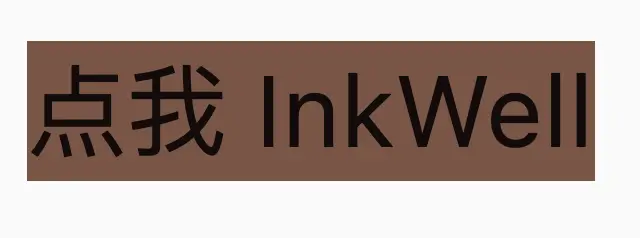
InkWell是带有水波纹的点击事件的组件
定义
const InkWell({
    Key? key,
    this.child, // 子组件
    // 点击事件
    this.onTap, // 点击事件
    this.onDoubleTap, // 双击事件
    // 长按事件
    this.onLongPress, // 长按事件
    this.onTapDown, // 点击按下事件
    this.onTapCancel, // 点击取消事件
    this.onHighlightChanged, // 高亮改变事件
    this.onHover, // 悬停事件
    // 光标样式
    this.mouseCursor, // 鼠标样式
    // 颜色
    this.focusColor, // 焦点颜色
    this.hoverColor, // 悬停颜色
    this.highlightColor, // 高亮颜色
    this.overlayColor, // 覆盖颜色
    this.splashColor, // 水波纹颜色
    this.splashFactory, // 水波纹工厂
    this.radius, // 半径
    this.borderRadius, // 圆角
    this.customBorder, // 自定义边框
    this.enableFeedback = true, // 启用反馈
    this.excludeFromSemantics = false, // 排除语义
    this.focusNode, // 焦点
    this.canRequestFocus = true, // 可以请求焦点
    this.onFocusChange, // 焦点改变事件
    this.autofocus = false, // 自动获取焦点
})
1
2
3
4
5
6
7
8
9
10
11
12
13
14
15
16
17
18
19
20
21
22
23
24
25
26
27
28
29
30
31
2
3
4
5
6
7
8
9
10
11
12
13
14
15
16
17
18
19
20
21
22
23
24
25
26
27
28
29
30
31
代码
import 'package:flutter/material.dart';
class InkWellPage extends StatelessWidget {
const InkWellPage({Key? key}) : super(key: key);
Widget _buildView() {
return InkWell(
// 点击
onTap: () {},
// 水波纹颜色
splashColor: Colors.blue,
// 高亮颜色
highlightColor: Colors.yellow,
// 鼠标滑过颜色
hoverColor: Colors.brown,
//
child: const Text(
'点我 InkWell',
style: TextStyle(
fontSize: 50,
),
),
);
}
Widget build(BuildContext context) {
return Scaffold(
body: Center(
child: _buildView(),
),
);
}
}
1
2
3
4
5
6
7
8
9
10
11
12
13
14
15
16
17
18
19
20
21
22
23
24
25
26
27
28
29
30
31
32
33
34
2
3
4
5
6
7
8
9
10
11
12
13
14
15
16
17
18
19
20
21
22
23
24
25
26
27
28
29
30
31
32
33
34
输出